Data collection with VR teleoperation
VR setup
One time setup for VR teleoperation
Create a Meta Quest Developer account and install Meta Quest Developer Hub.
Download the teleoperation APK.
Sideload the APK onto your Quest 3 via Developer Hub.
Per-session setup
-
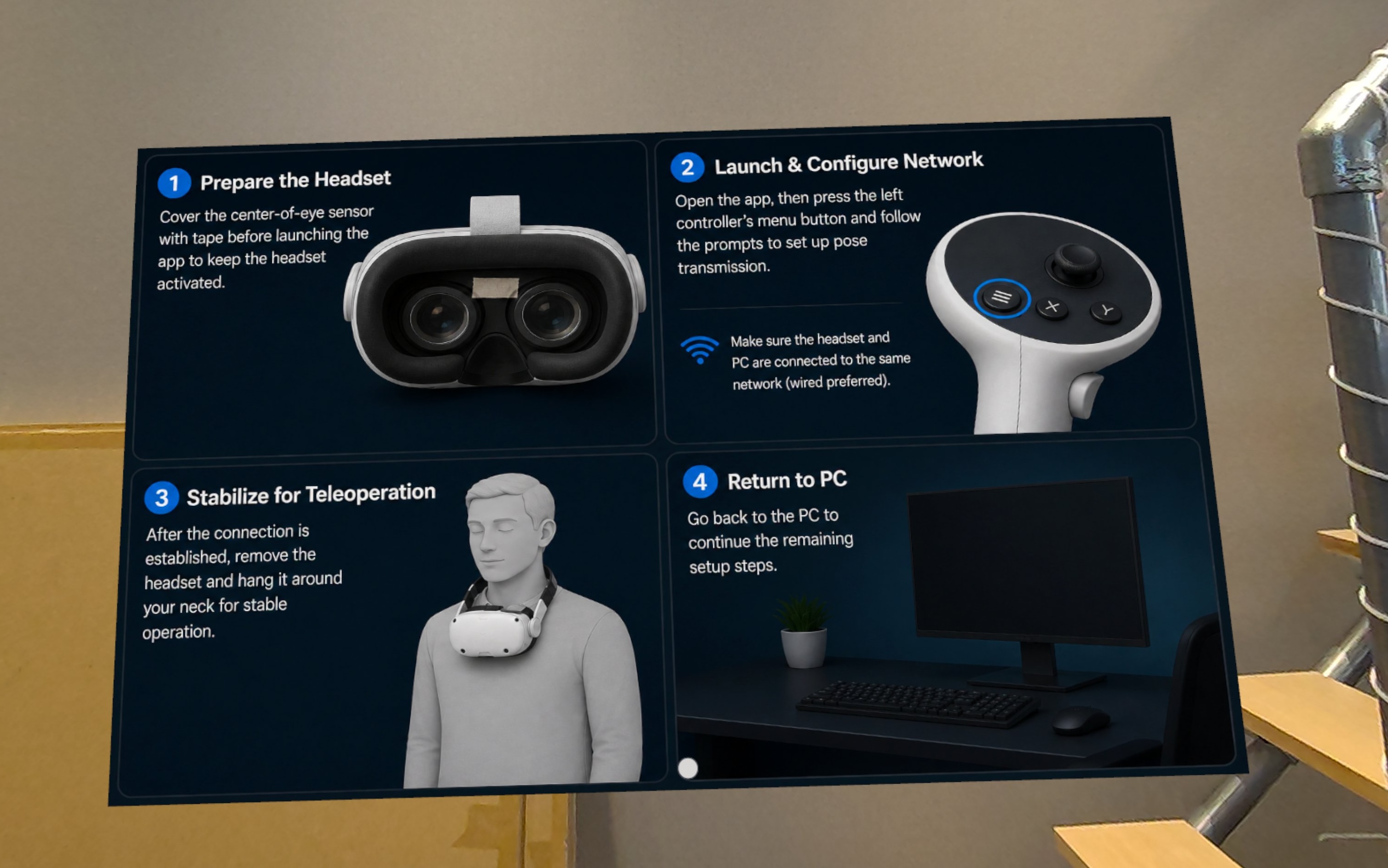
Put on the headset and launch the teleoperation app. After the app is launched, you should see the following screen in the headset.
-
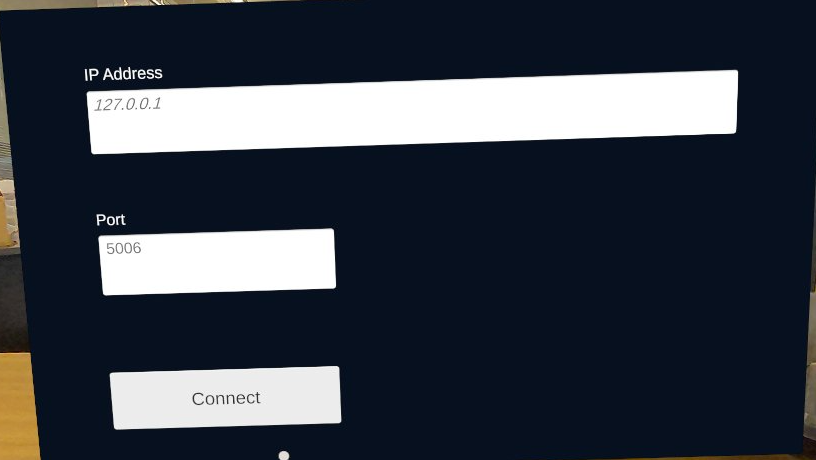
Press the left controller menu button — a settings panel will appear.
-
Enter the IP address of your PC host and the port (default:
5006). -
Verify communication from the PC host:
nc -lu 5006tipIf you don't see any incoming data, another remote control APK on the Quest may be interfering. Try disabling other apps and check again.
-
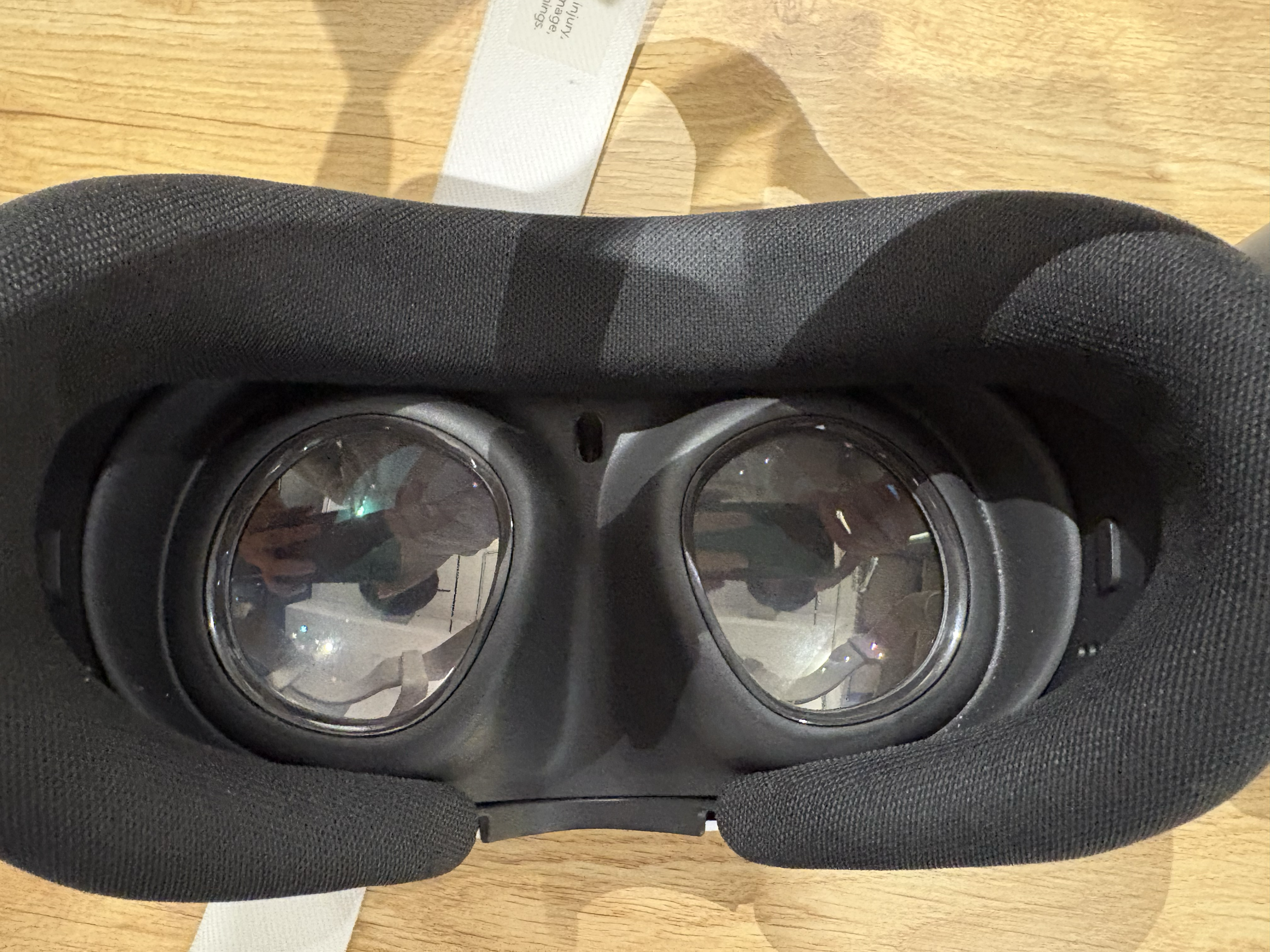
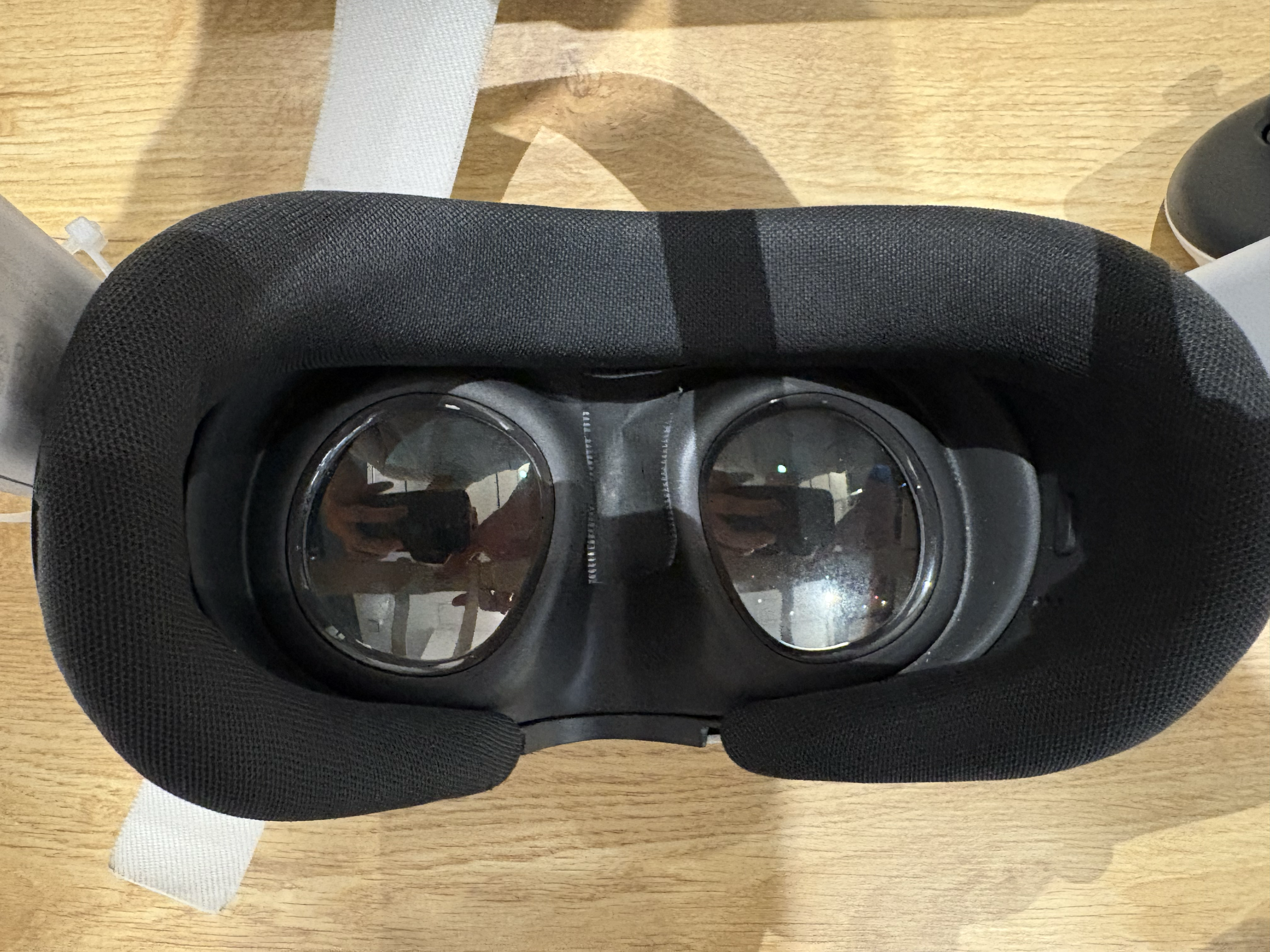
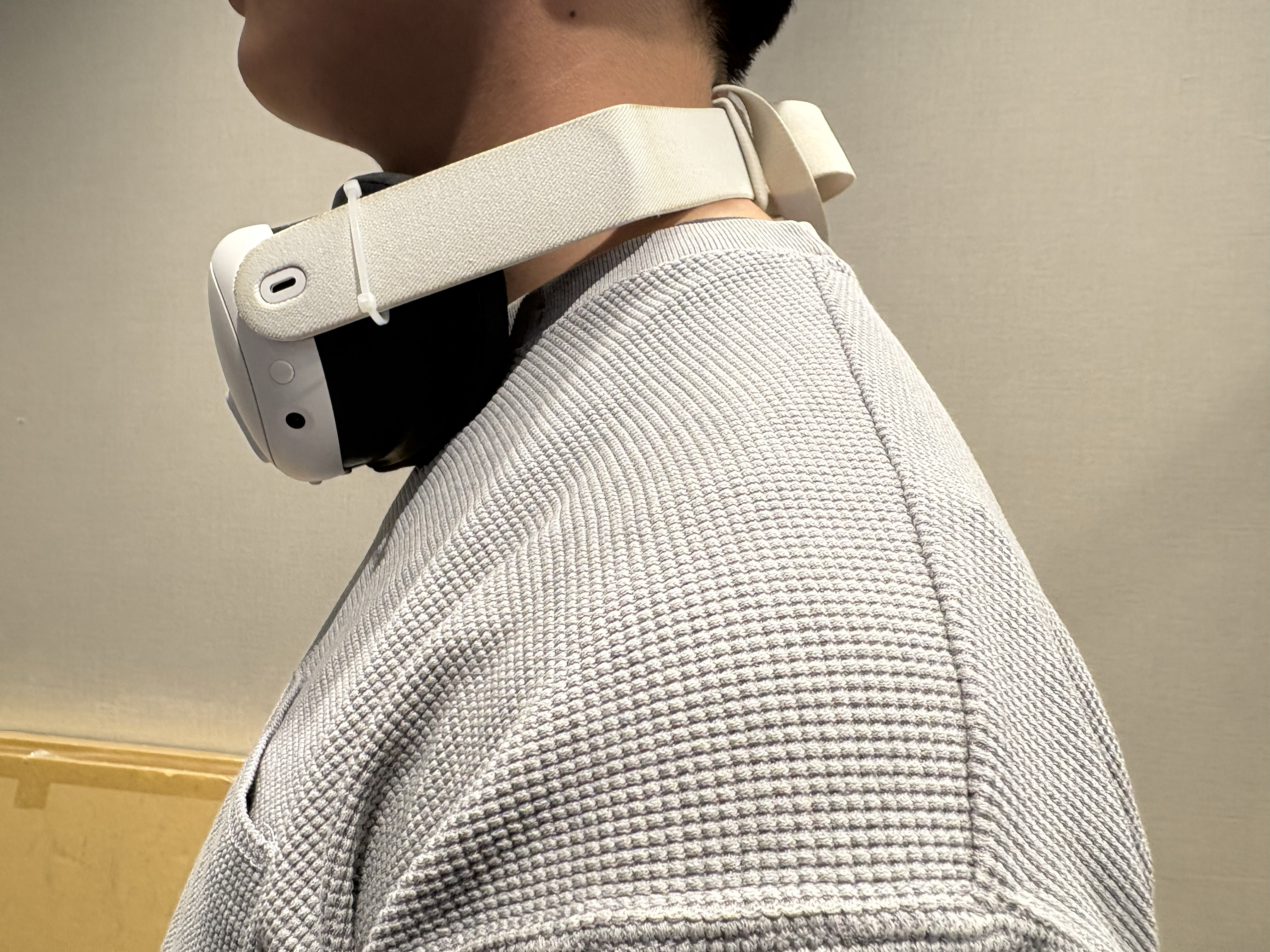
Tape the center-of-eye sensor on the headset to keep it constantly activated (prevents the display from sleeping when worn at the neck). Before taping the sensor:
After taping the sensor:
-
Take off the headset and hang it around your neck — you will operate with the controllers while the headset rests there.
Data collection in MuJoCo environment
Even if you don't have the physical robot, you can still go through the data collection process using the MuJoCo environment. This will allow you to understand the data collection process and the data format before collecting the data on the real robot. Also, this section is useful for testing your VR teleoperation setup and to make sure that everything is working properly before collecting the data on the real robot.
Setup for MuJoCo environment
git clone --recurse-submodules https://github.com/enactic/dora-openarm-data-collection.git
cd dora-openarm-data-collection
uv venv .venv
source .venv/bin/activate
uv pip install dora-rs-cli
dora build dataflow-vr-mujoco.yaml --uv
Teleoperation in MuJoCo environment
dora run dataflow-vr-mujoco.yaml --uv
If VR teleoperation is working properly, you should see the robot arm moving in the MuJoCo environment when you operate the VR controllers.
To collect data in MuJoCo, use the same dataflow.
dora run dataflow-vr-mujoco.yaml --uv
The data collection web UI will open automatically, and you can check the data collection status at http://localhost:8000.
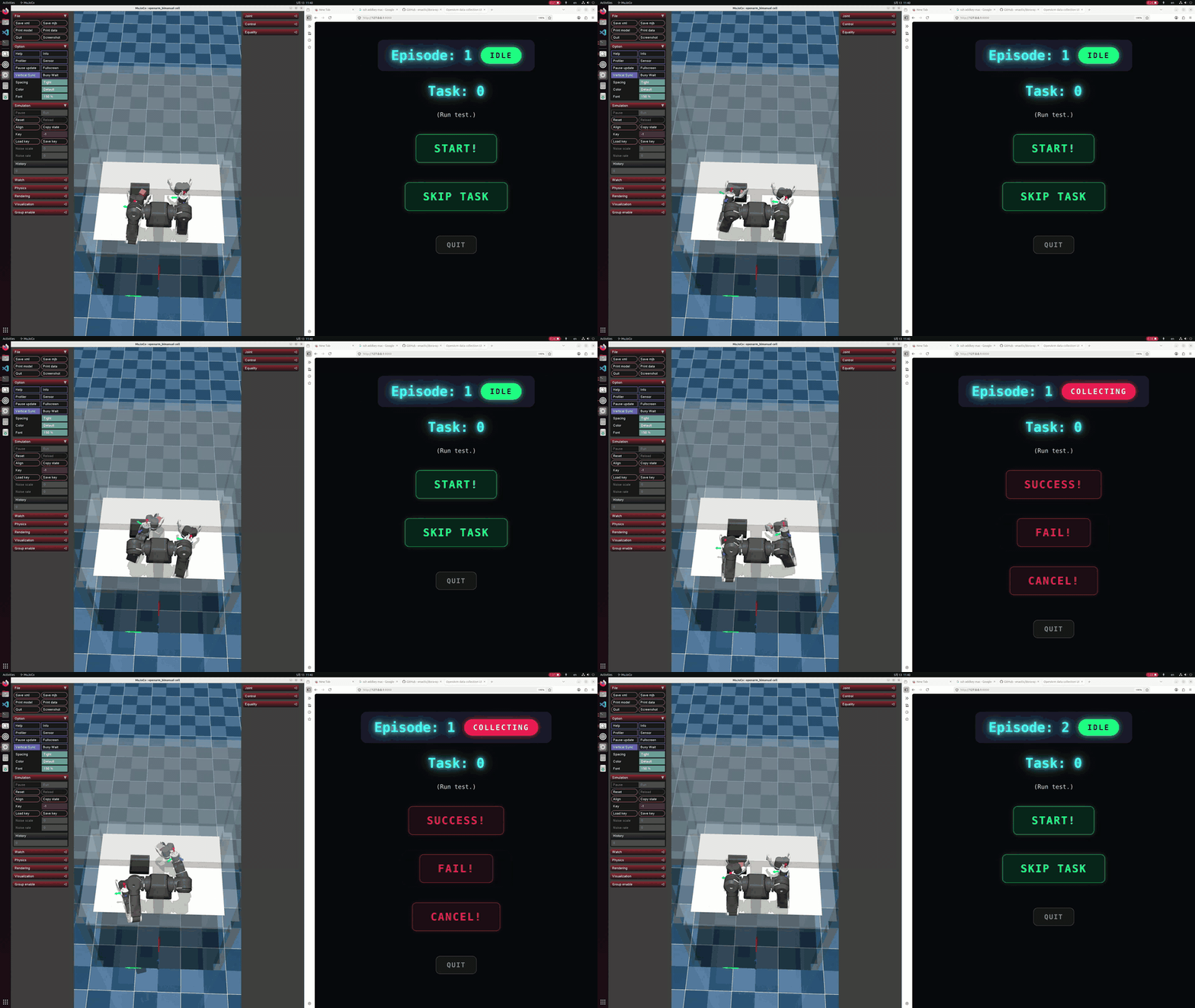
left: MuJoCo environment, right: data collection web UI
How to control data collection with VR controllers
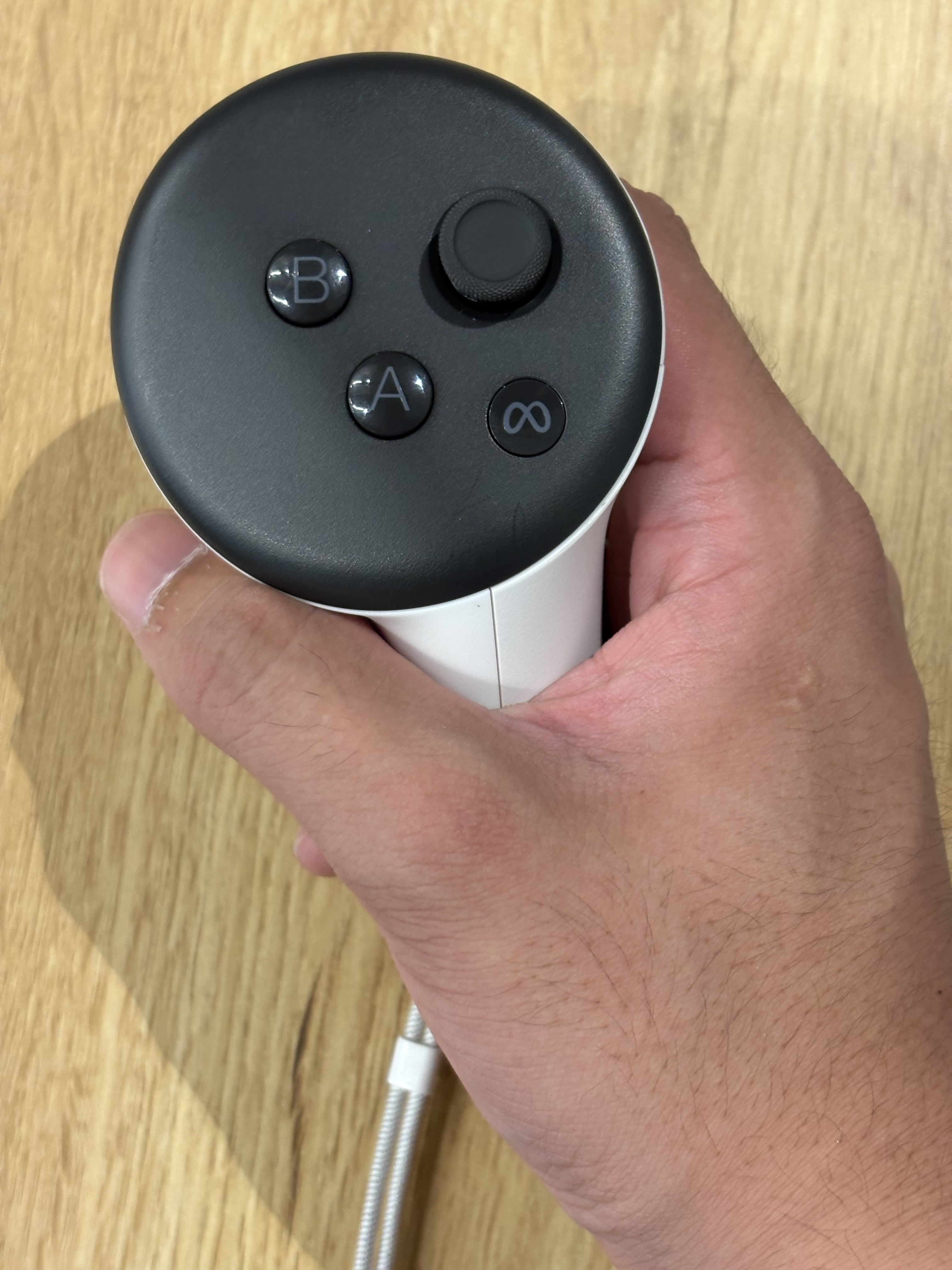
You can use button A and B on the right VR controller to control the data collection.
After the program starts, web UI will open.
Please access http://localhost:8000 to check the data collection status and control the data collection.
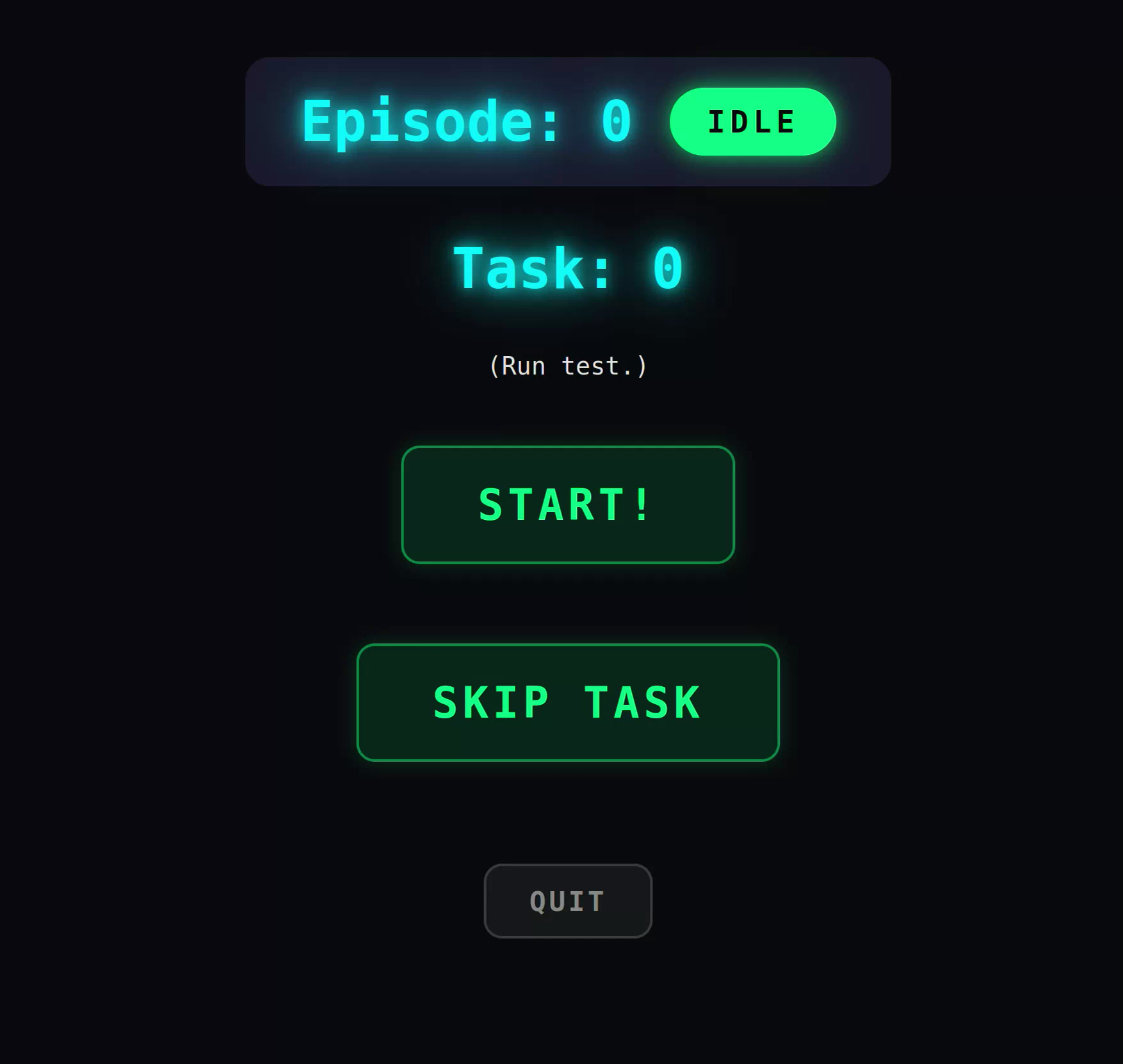
When the web UI looks like the image above, you can start the data collection by pressing the A button on the right VR controller. This will start recording the data.
- A : start recording
- B : stop recording and quit the program
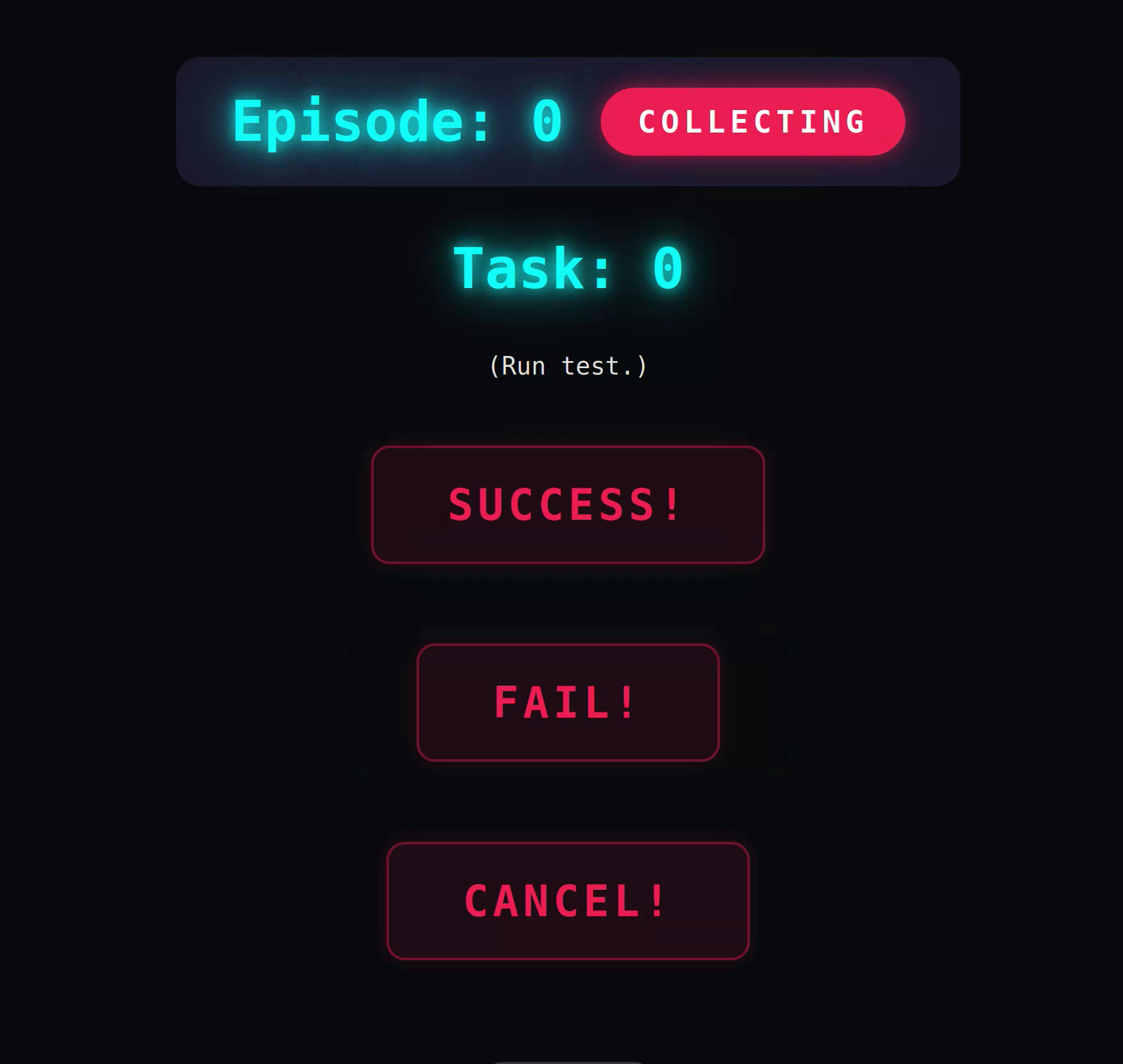
when you start recording, the data collection will start. If you successfully complete the task, press the A button again to stop recording and mark the episode as success. If you fail the task, press the B button to stop recording and mark the episode as failure.
- A : mark as success
- B : mark as failure
Check the collected data
Default data path can be found in dataflow-vr-mujoco.yaml DIRECTORY: "vr_mujoco_data".
If you want to change the data path, you can change the value of DIRECTORY in the config file.
- id: recorder
  build: pip install -e nodes/dora-openarm-dataset-recorder
  path: dora-openarm-dataset-recorder
  env:
    METADATA_FILE: "metadata_mujoco.yaml"
    DIRECTORY: "vr_mujoco_data"
After finishing the data collection, you can check the collected data in the specified directory. The data will be stored in the OpenArmDataset format.
If you don't have the real robot, skip the next section and move to the dataset format conversion section to convert the collected data to the LeRobot dataset format for training the policy.
Data collection on the real robot (Cell)
If you want to teleoperate OpenArm 2.0 alone without the cell, please see Data collection on the real robot (pedestal).
First, make sure that the CAN interface is up and running and the cameras are set up properly, VR teleoperation is working. Then, run the following command to start the data collection.
Start data collection
dora build dataflow-vr.yaml --uv
dora run dataflow-vr.yaml --uv
Same as the MuJoCo data collection, you can specify the output directory by modifying dataflow-vr.yaml.
If the command runs successfully, the arm will move to the initial position. You need to align your VR controllers to the arm first by holding the trigger button.
Once the alignment completes, you can fully control the arm with the VR controllers.