Data collection with KER
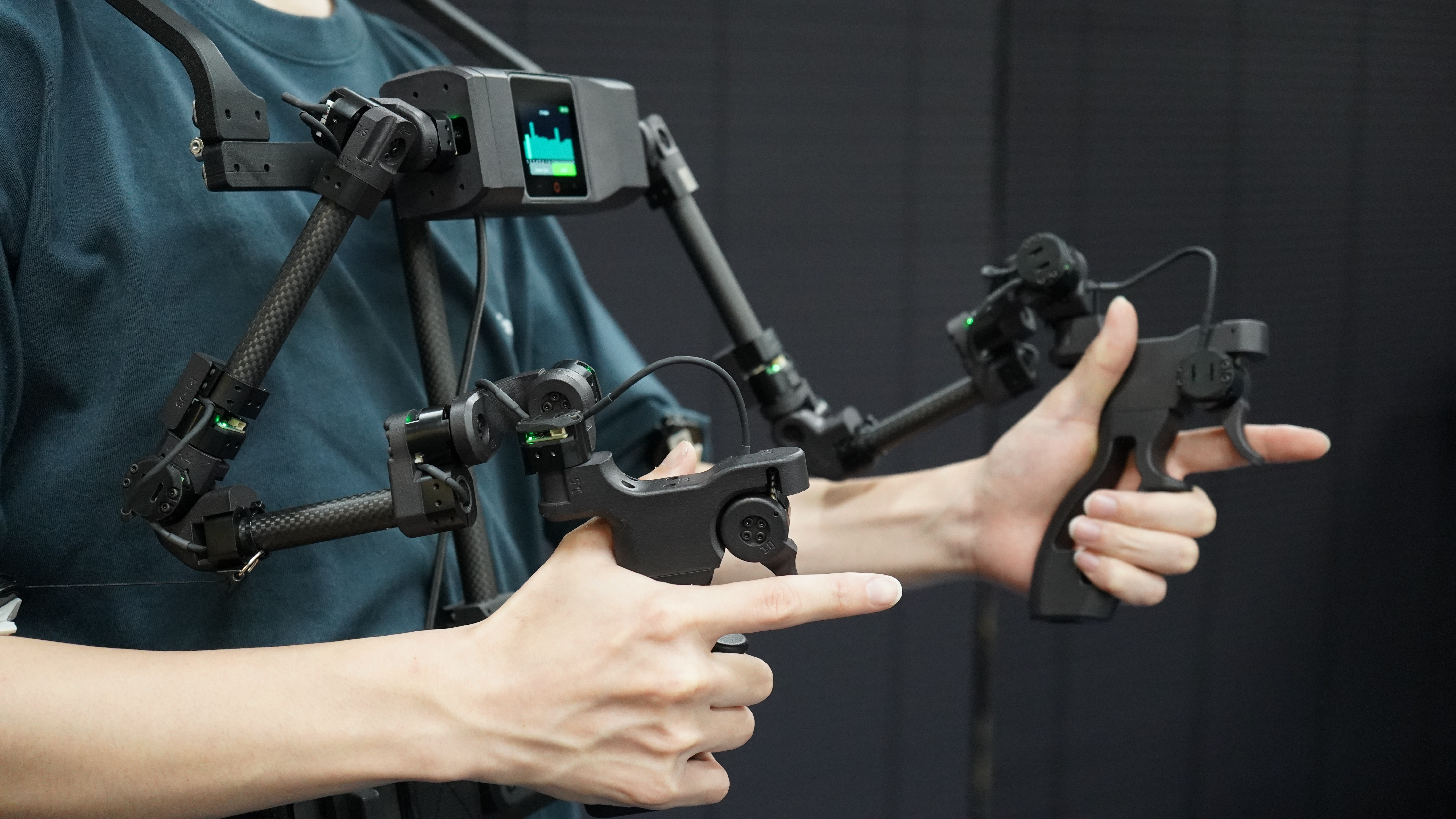
OpenArm KER is a motorless leader arm that enables intuitive operation of OpenArm 2.0.
Prerequisites
- Foot pedal (required for data collection)
- OpenArm KER
The Foot pedal is used to control the data collection. OpenArm KER is used to control the robot arms.
Core Repositories
- openarm_ker: PC-side data reception library.
- dora-openarm-ker: dora-rs node implementation for the OpenArm KER.
Setup
Software setup
1. Install system dependencies
sudo apt install libusb-1.0-0-dev
2. Set up udev rules
echo 'SUBSYSTEM=="usb", ATTRS{idVendor}=="303a", MODE="0666"' | sudo tee /etc/udev/rules.d/99-m5stack.rules
sudo udevadm control --reload-rules && sudo udevadm trigger
If the KER is connected, you can check the connection with the following command.
lsusb | grep 303a
303a:4002 should appear in the output.
3. Ping KER with the CLI
Install openarm_ker cli
uv venv
source .venv/bin/activate
uv pip install openarm_ker
then, you can ping KER with the following command.
openarm-ker-cli ping
If you get a response like below, the connection is successful.
{
  "fw": "v1.0.0",
  "hw": "KER-v1.0.0",
  "updated": "2026-05-25"
}
Also, you can check the data from the encoder with the following command.
openarm-ker-cli stream
Please push the green button on the KER display to start streaming the data. You will see the data from the encoder in the terminal.
Example output
[Stream Data] {'timestamp': 1397863671, 'angles': [-14.282562255859375, 4.4276580810546875, 32.53425598144531, 55.142913818359375, -5.38348388671875, 44.62041091918945, 14.425567626953125, -30.7186279296875, 3.4595165252685547, -7.481842041015625, -32.2158203125, 40.9552001953125, -3.518857955932617, -43.488616943359375, -8.14105224609375, 39.925689697265625], 'errors': [False, False, False, False, False, False, False, False, False, False, False, False, False, False, False, False], 'encoder_value': 0, 'encoder_button': 0}
Teleoperation and Data Collection
After the setup, you can run the dataflow and start teleoperation / data collection with KER.
Clone the repository and build the dataflow
git clone https://github.com/enactic/dora-openarm-data-collection
cd dora-openarm-data-collection
uv venv -p 3.12
uv pip install dora-rs-cli
source .venv/bin/activate
dora build dataflow-ker.yaml --uv
How to wear KER
-
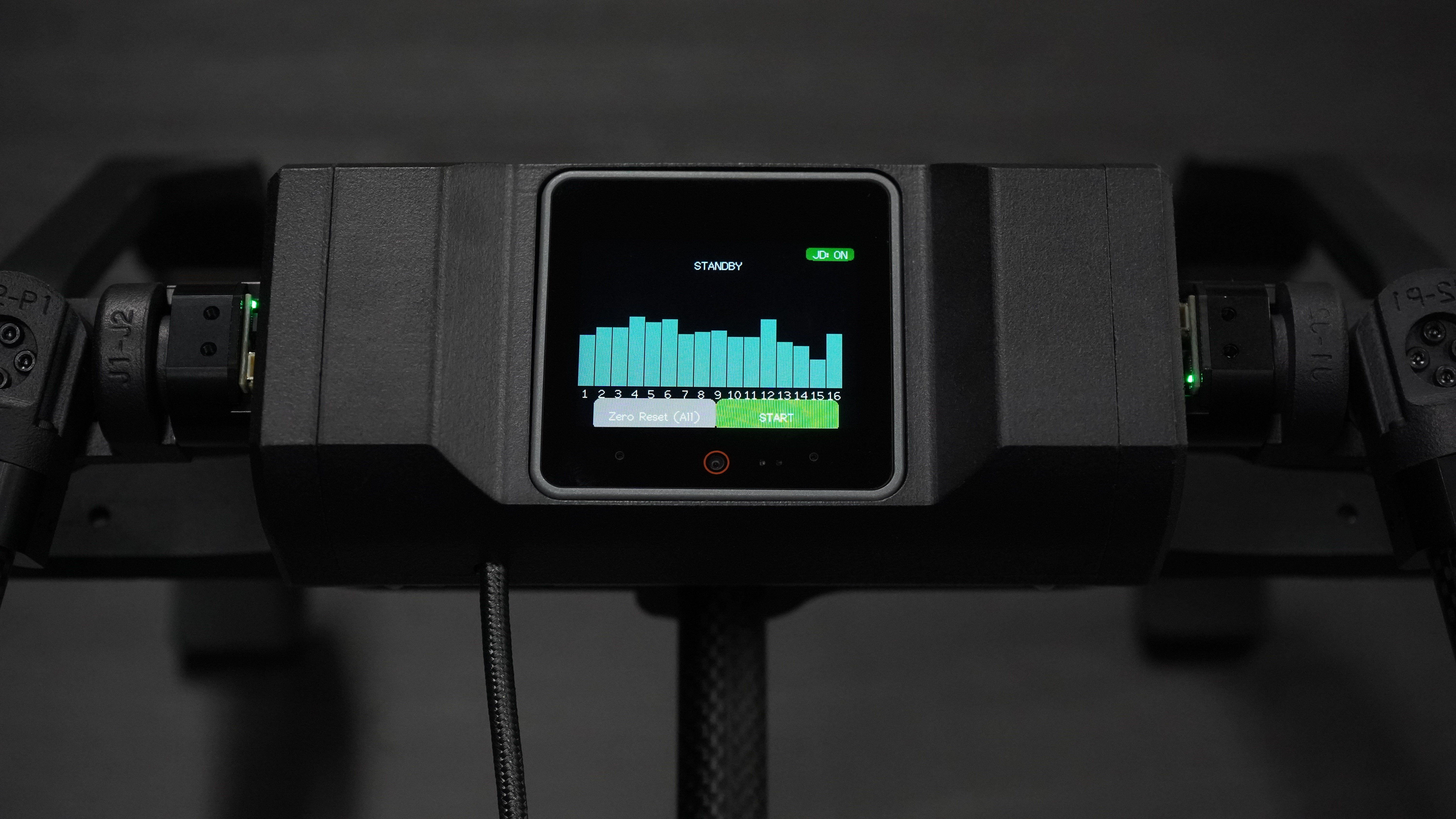
Connect the device to your PC using a USB Type-C cable.
-
The KER M5Stack display should turn on.
-
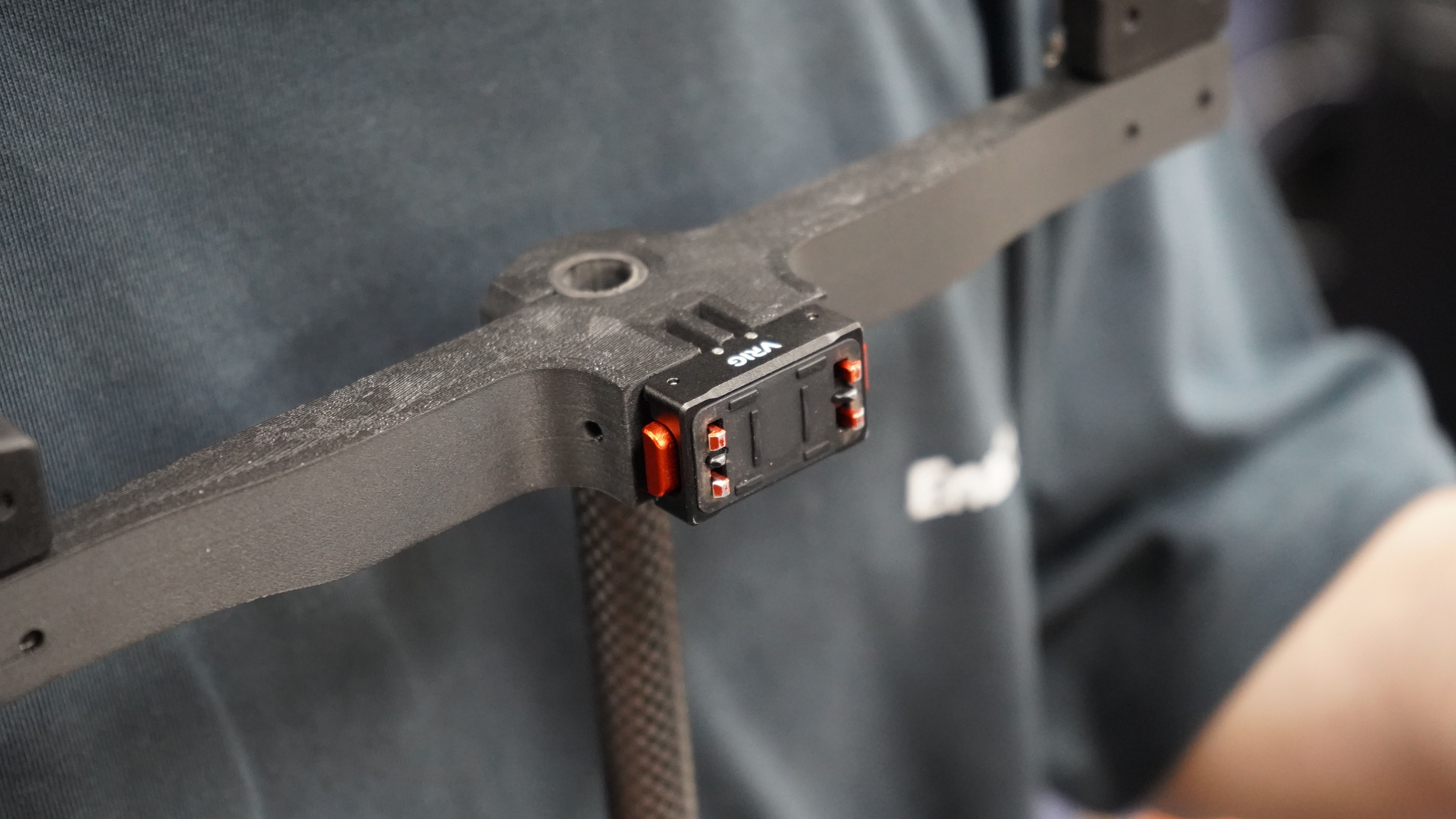
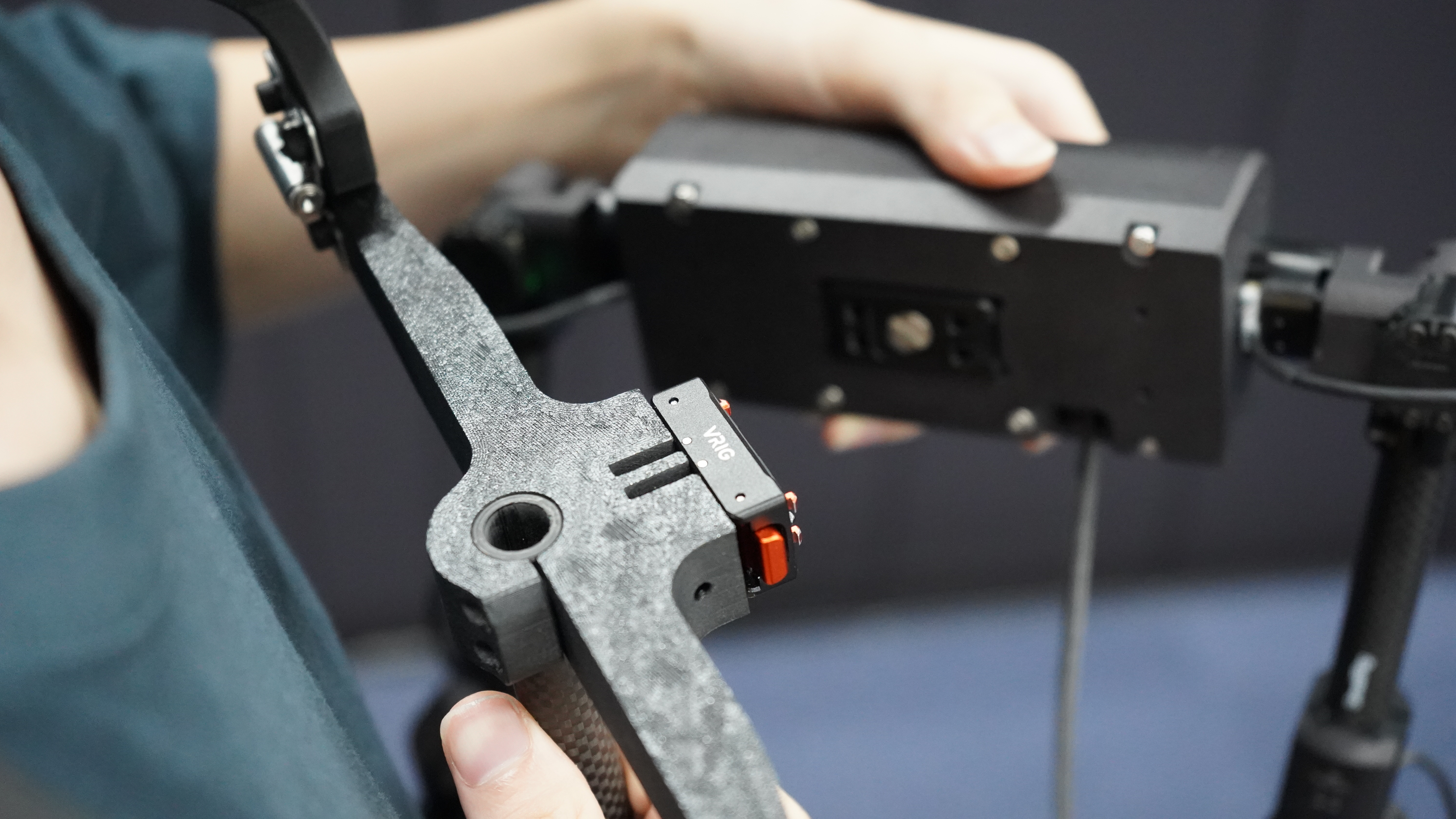
Attach the holderto the mounting plate. Make sure the holder is securely attached.
Run the dataflow
dora run dataflow-ker.yaml --uv
You can access the web UI at http://localhost:8000 to monitor the data collection process same as VR teleoperation.
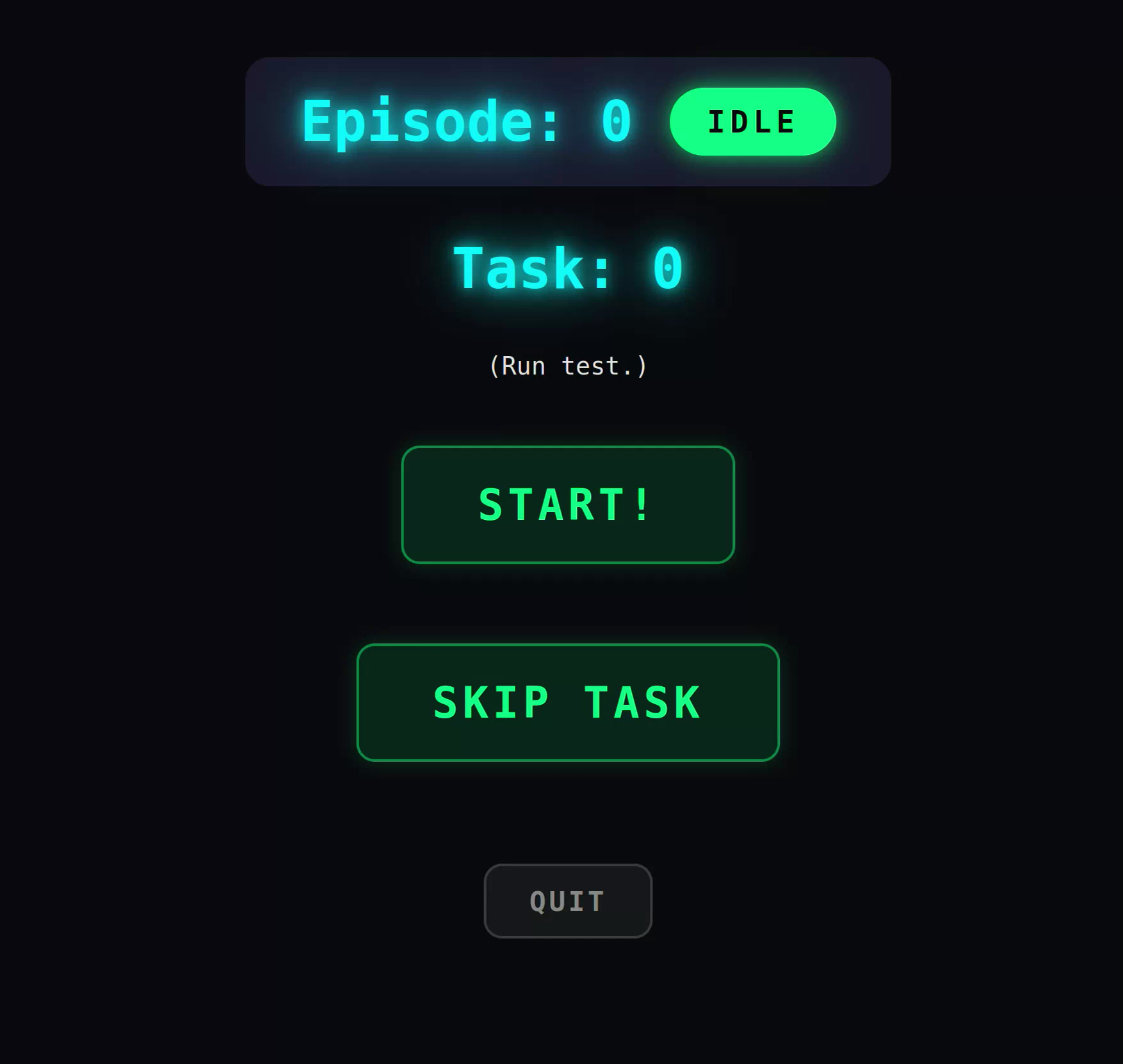
After you start the dataflow, you can align the KER with the OpenArm by pulling the KER trigger. After the alignment, OpenArm will follow the movement of KER, and you can do teleoperation smoothly with KER.
During the data collection, you can use the foot pedal to control the start / stop / reset or success / failure of the data collection.
We recommend using a 3-button foot pedal from SANWA Supply.
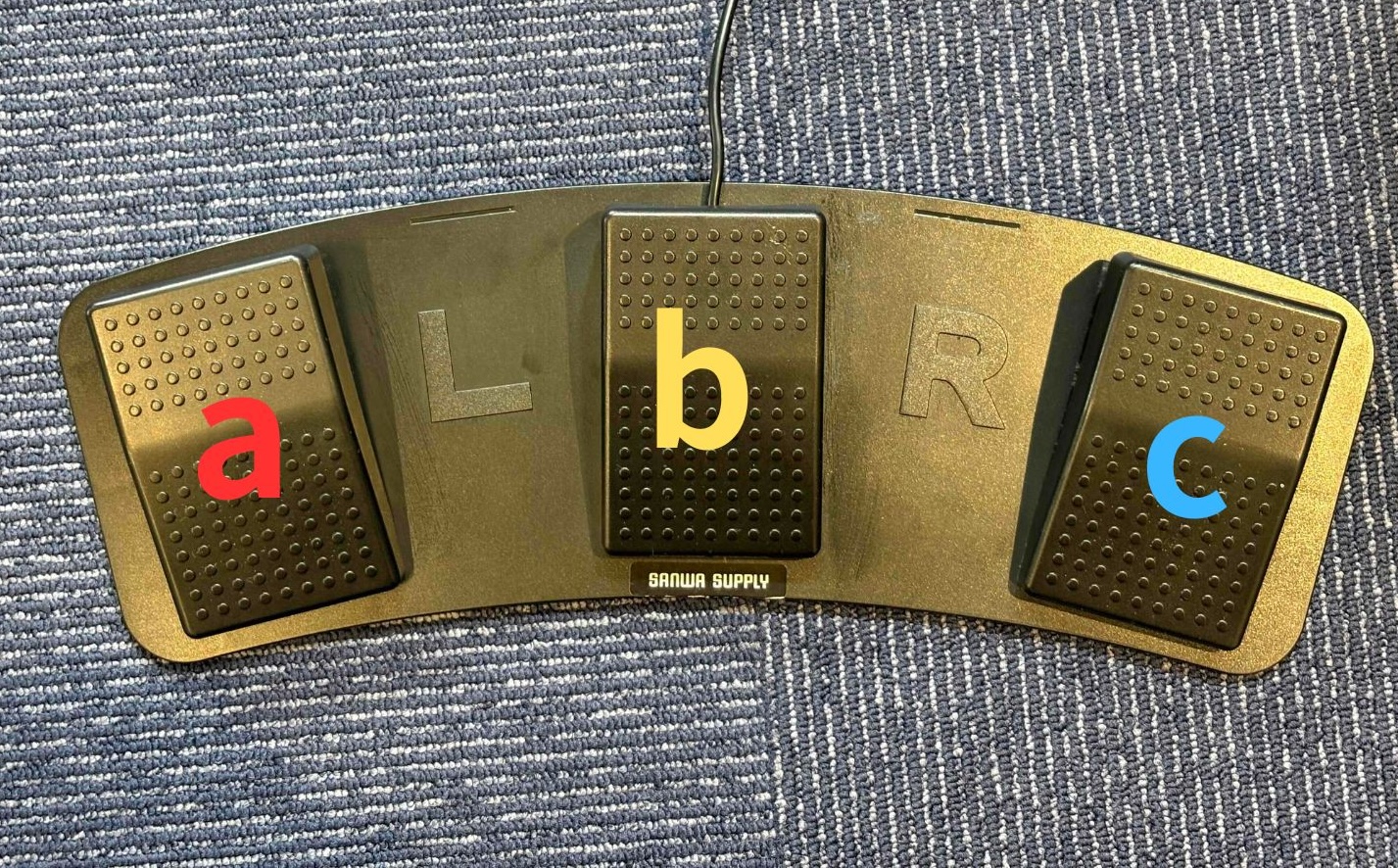
Button mapping:
| Button | Start panel | Recording panel |
|---|---|---|
| left (a) | - | fail |
| middle (b) | quit | quit |
| right (c) | start | success |
If you use a different foot pedal, please check the button mapping and map the buttons to a,b,c accordingly.
After you start the data collection, you can see the start or skip panel on the web UI. You can start the data collection by pressing the right(c) button.
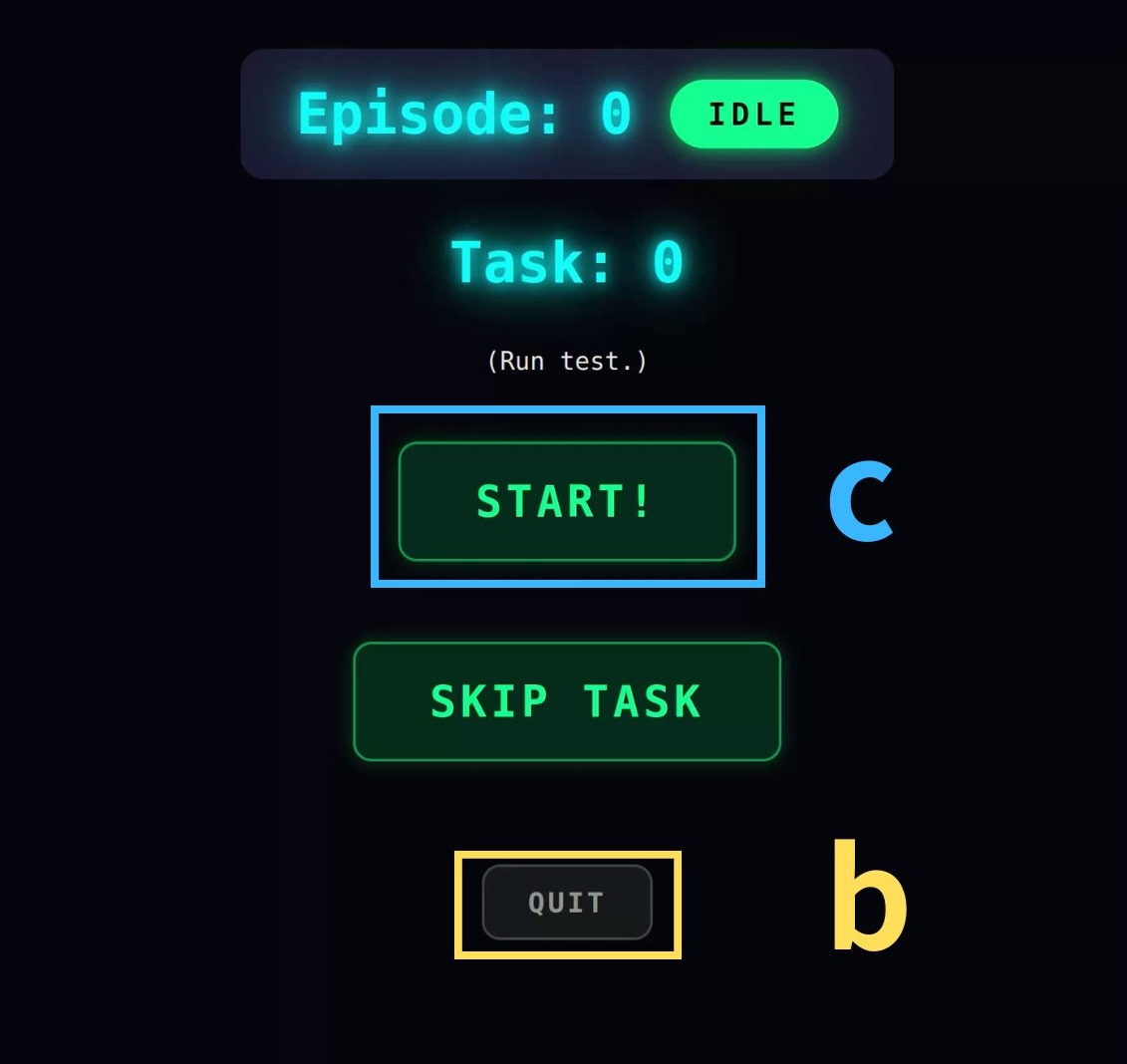
After the data collection is started, you can see the success or fail panel on the web UI.
Press the left(a) button to mark the data collection as fail, or press the right(c) button to mark it as success.
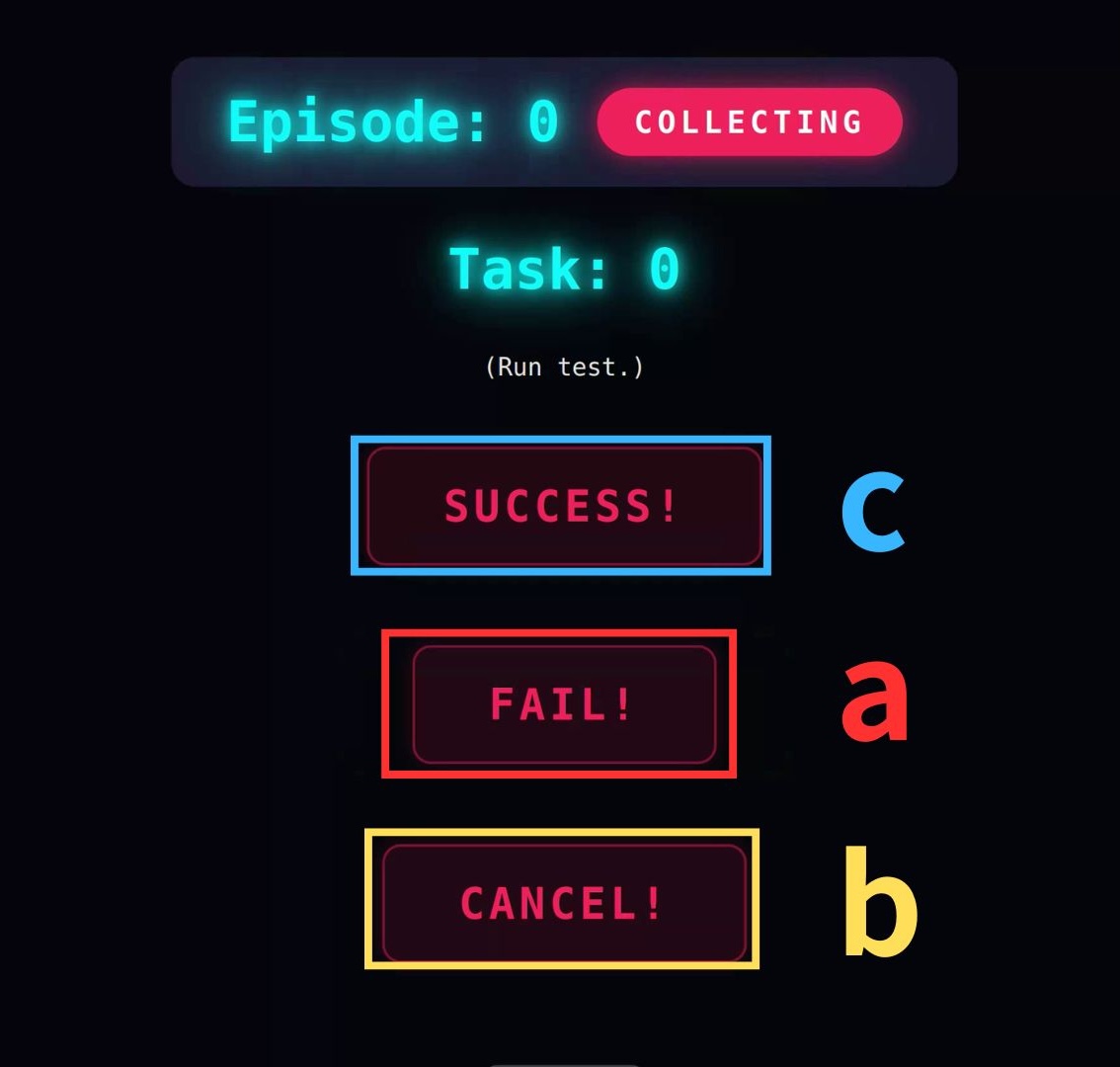
Also, you can press the middle(b) button to quit the data collection at any time.
Troubleshooting
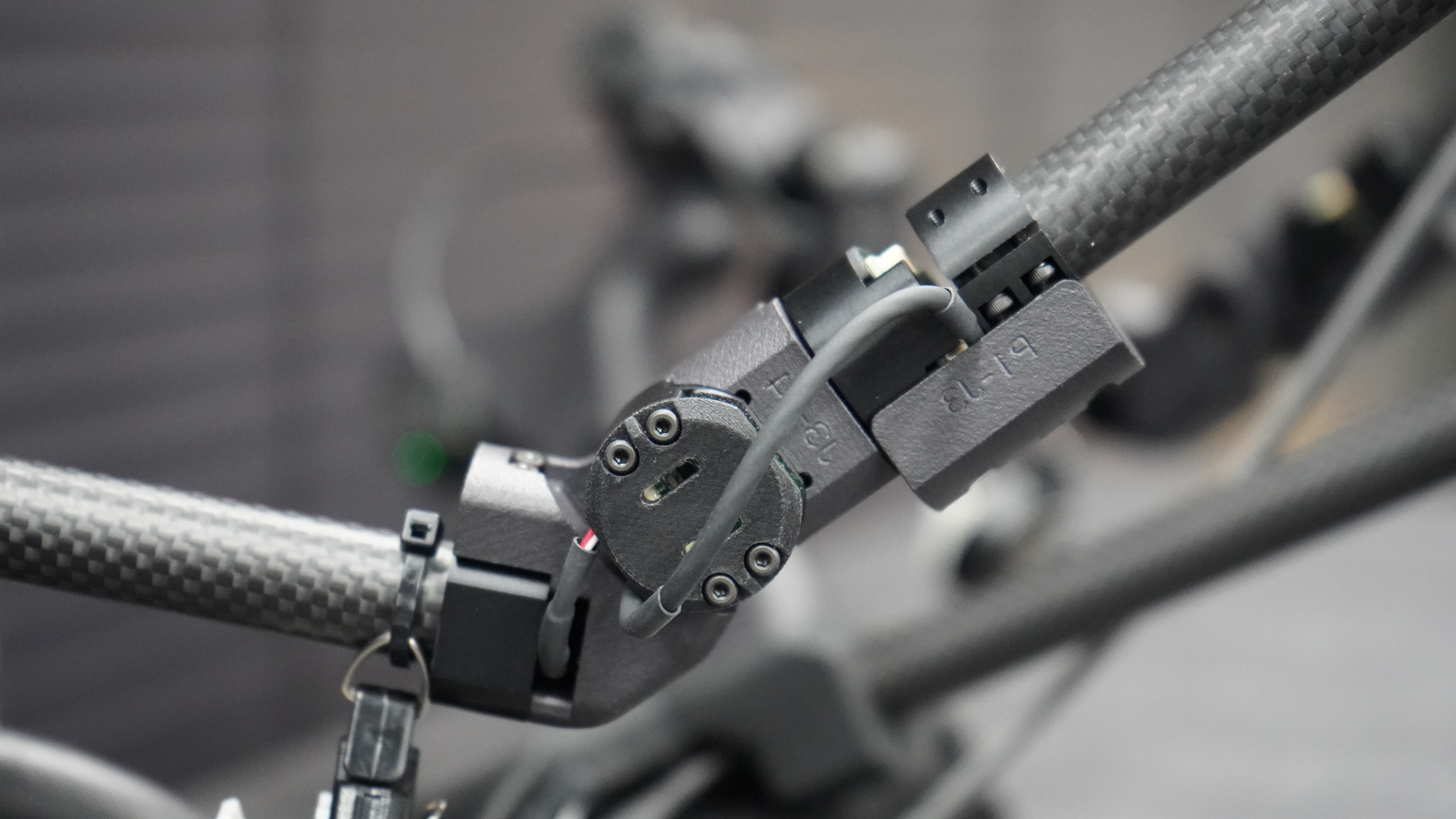
If you see the following screen, check the possible causes below.
1. If the ERR bar is displayed
Possible causes:
- Check that all cables are connected securely.
- Make sure the IC is properly seated and not loose.
- Inspect the connectors and PCB for poor contact or damaged pins.
2. If Jump Detect is displayed
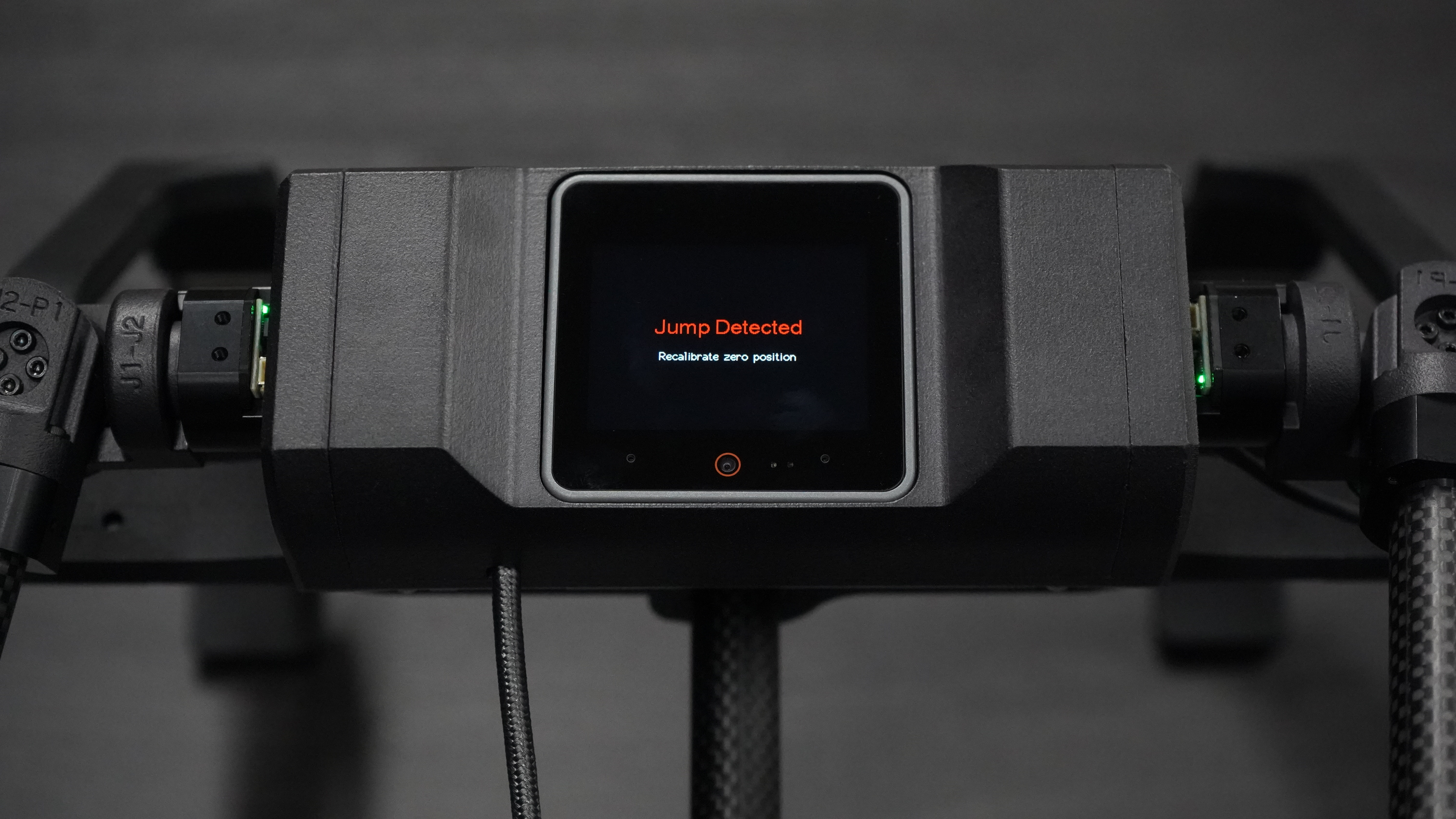
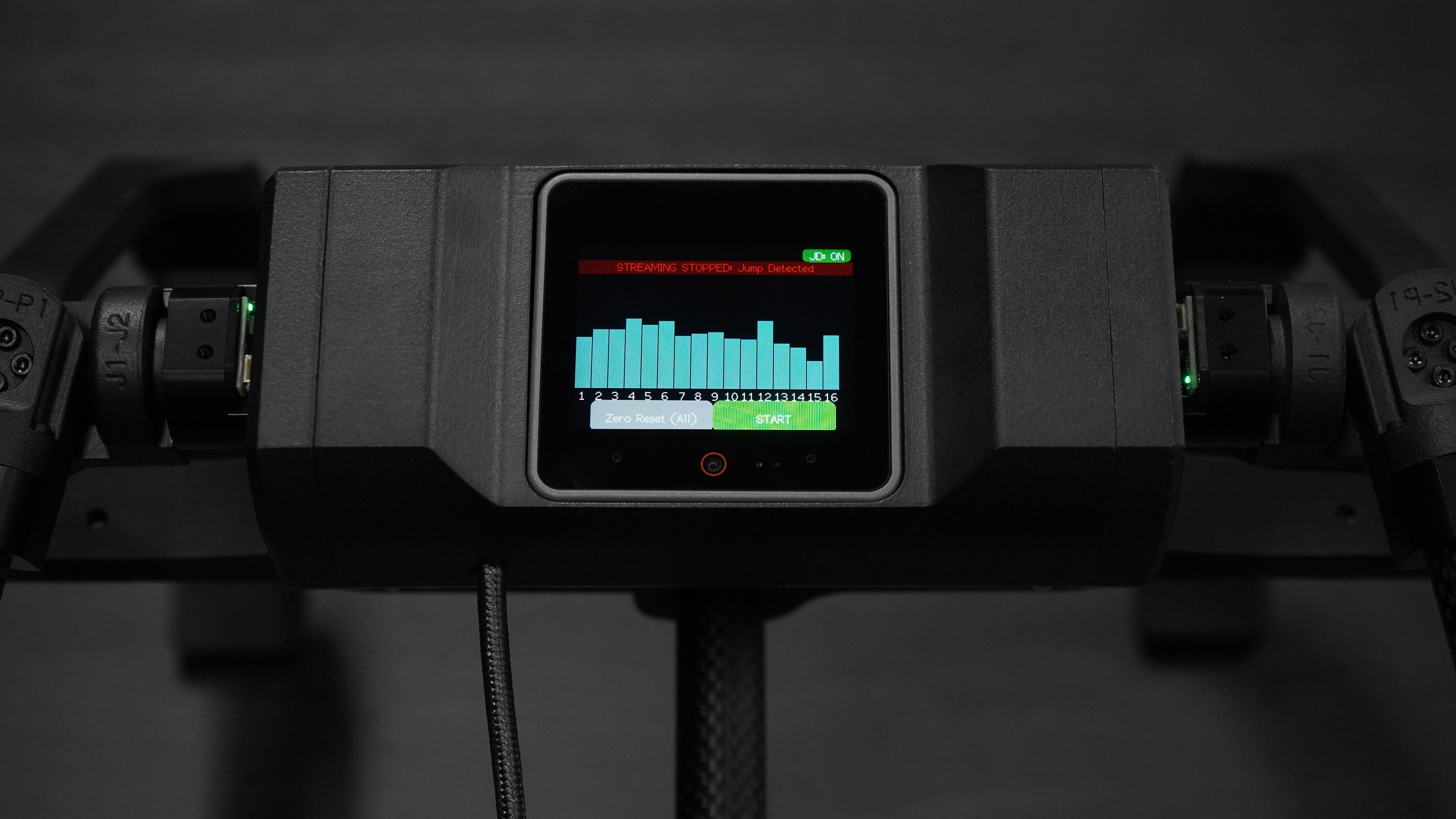
Please write the zero position again. See the Calibration workflow for details.
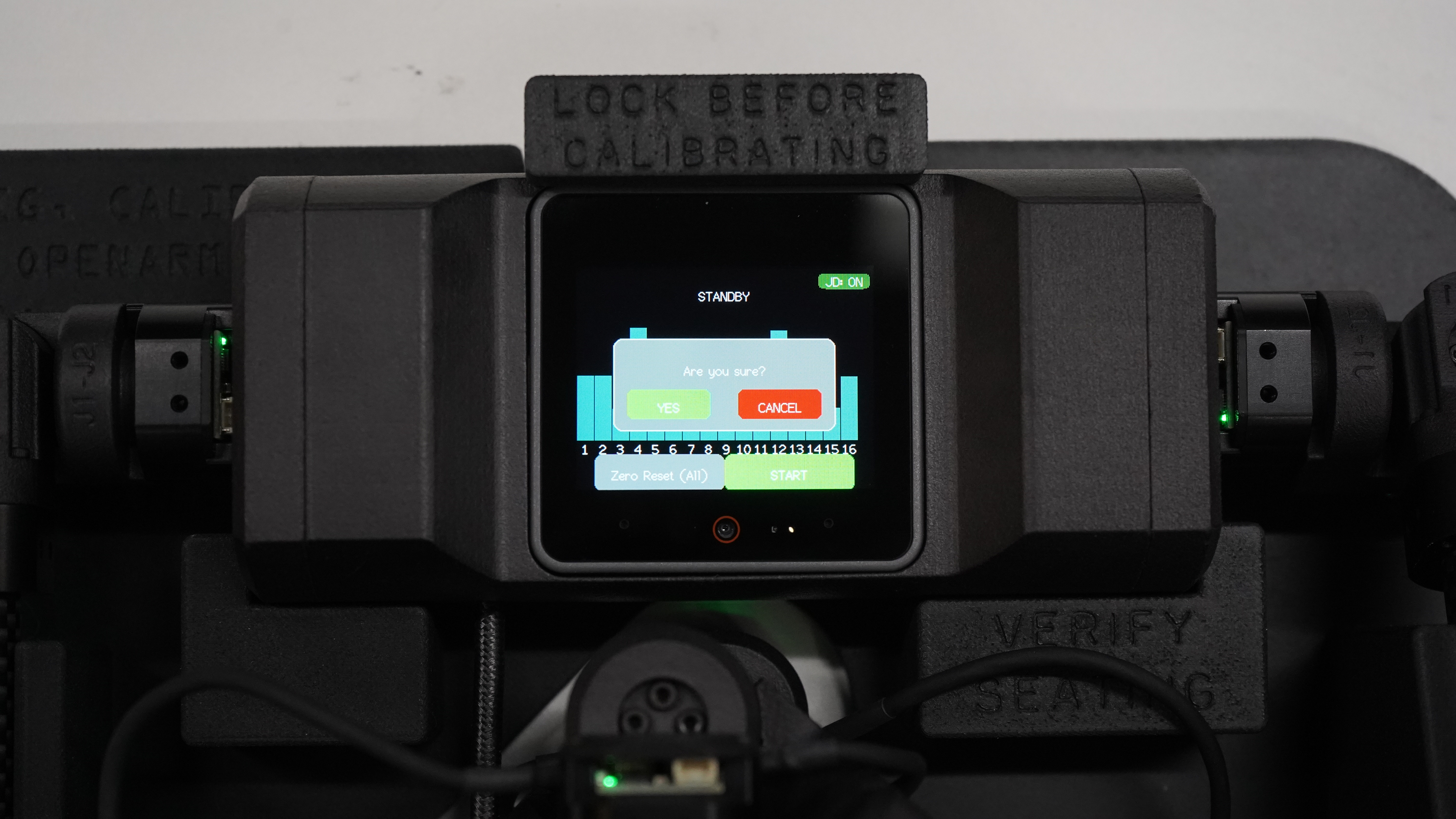
First, put the KER in the Box and fix the position of the KER with screws.
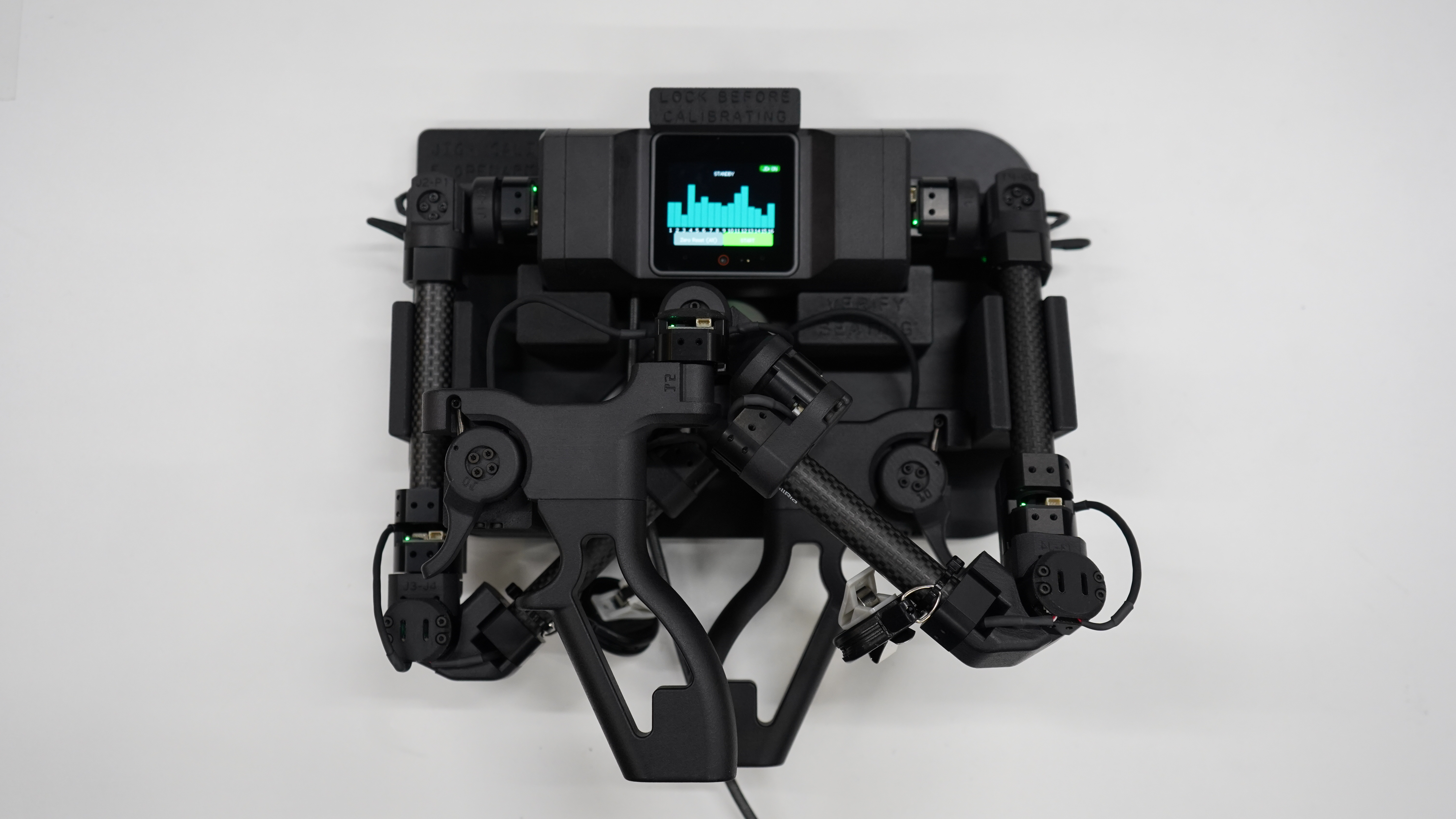
Then, turn on the KER by connecting the USB cable, and press the gray button(Zero Reset All) on the KER display.
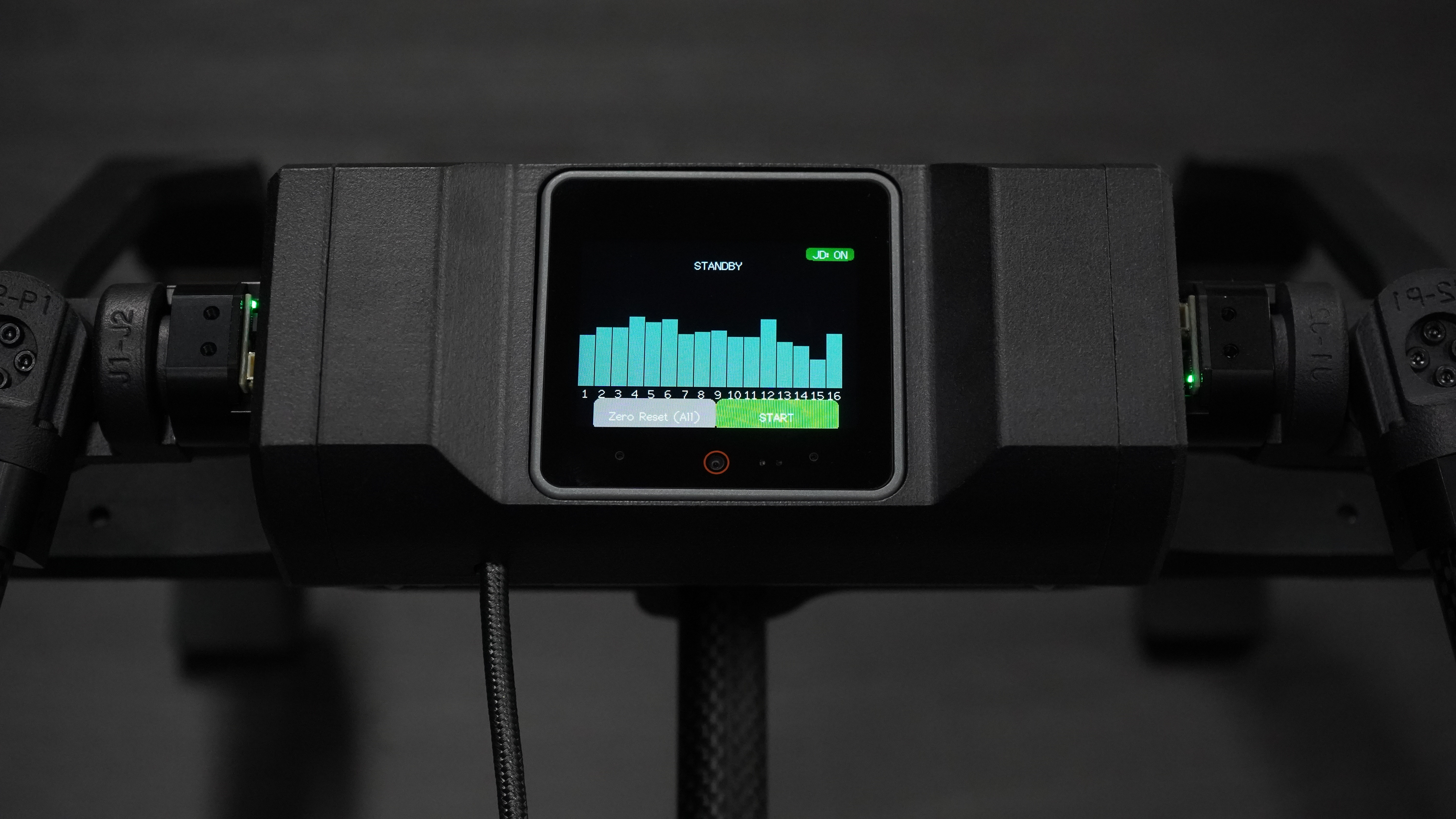
Pop up window will appear on the display. Please select Yes and press the button to write the zero position.